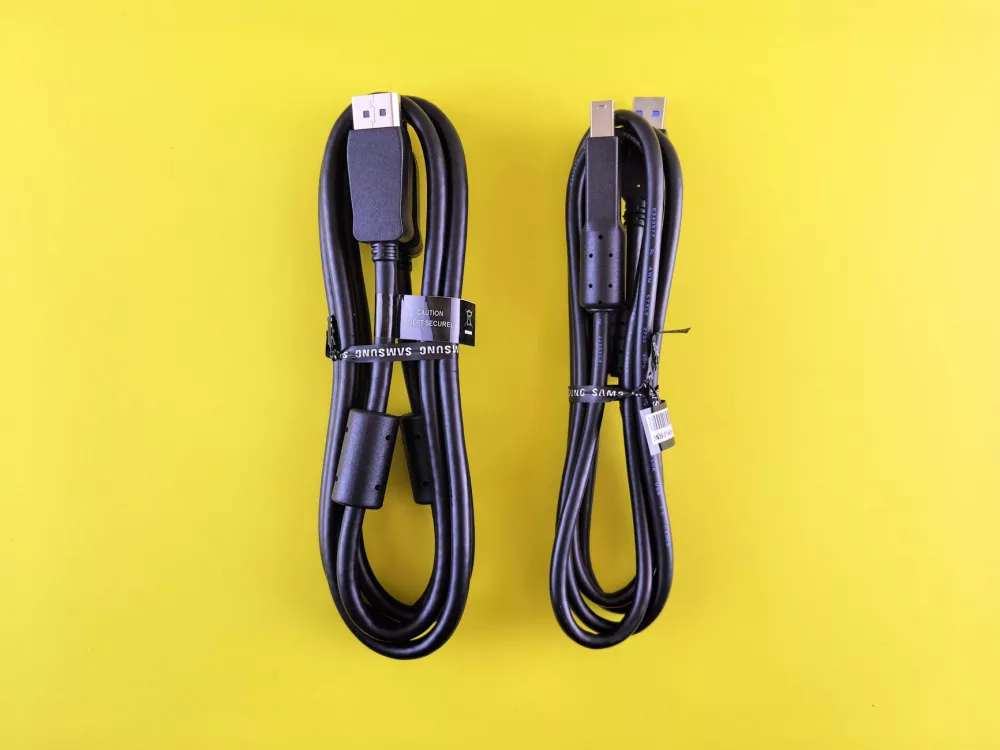
Untangling the Web: A Comprehensive Guide to PC Cables
You know, it's funny how we often get so caught up in the glitz and glamor of processors, graphics cards, and high-speed RAM, that we completely overlook the unsung heroes of our computing experience: the cables. I mean, think about it for a second. Without them, your cutting-edge components are just expensive paperweights. They're the literal lifelines, transmitting power, data, and video signals across your entire system. Today, I want to take a deep dive into the world of PC cables, explaining what they are, what they do, and why understanding them can save you a whole lot of headaches down the line.
For many of us, especially when we're building our first PC or upgrading an old one, cables can seem like a confusing spaghetti junction. There are so many types, each with its own connector and purpose. But trust me, once you get the hang of it, it's not nearly as intimidating as it looks. Let's break down the most common types you'll encounter.
Powering Your Rig: The Essential Power Cables
First up, we've got power. Every component in your PC needs electricity, and these cables are responsible for delivering it from your power supply unit (PSU).
- 24-Pin ATX Power Connector: This is the big one, often the first cable you connect to your motherboard. It supplies the primary power to the motherboard and, by extension, many of its integrated components. Sometimes you'll see it as a 20+4 pin configuration, allowing for backward compatibility with older motherboards. It's robust and absolutely crucial.
- 8-Pin EPS (CPU) Power Connector: Your CPU needs its own dedicated power line, especially modern, power-hungry processors. This connector, often labeled CPU or EPS12V, provides that juice. You might see a 4+4 pin variant, which offers flexibility for different motherboard designs. It's usually located near the CPU socket on your motherboard.
- PCIe Power Connectors (6-pin, 8-pin, 6+2-pin): If you're running a dedicated graphics card (and let's be honest, most of us are), it'll need external power from the PSU. Graphics cards can draw a lot of power, so these connectors are vital. An 8-pin connector provides more power than a 6-pin, and many PSUs offer 6+2 pin connectors, giving you the flexibility to use either configuration depending on your GPU's requirements. Don't skimp on these; an underpowered GPU is a sad GPU.
- SATA Power Connector: This flat, wide connector is what powers your SATA drives – think hard drives (HDDs) and solid-state drives (SSDs), as well as optical drives if you still use them. It's pretty standardized and quite easy to connect.
- Molex Power Connector: While less common in newer builds, you might still run into Molex connectors for older fans, lighting, or some legacy peripherals. They're cylindrical with four pins and can be a bit finicky to plug in. I usually try to avoid them if possible, but sometimes they're necessary.
The Information Superhighway: Data Cables
Once everything's powered on, we need to send information around. That's where data cables come in.
- SATA Data Cable: This is the companion to the SATA power connector. It's a thin, flat cable that connects your HDDs, SSDs, and optical drives to your motherboard, allowing them to communicate and transfer data. You'll typically find one end plugging into the drive and the other into a SATA port on your motherboard. They're often L-shaped on one end to prevent accidental disconnections.
- USB Cables (Type-A, Type-B, Type-C, Micro, Mini): Oh, USB! Where do I even begin? This is probably the most ubiquitous cable type we encounter. From keyboards and mice to external hard drives and charging phones, USB does it all. We've got the familiar rectangular Type-A (most common on PCs), the squarer Type-B (often used for printers), the tiny Micro-USB (older phones, some peripherals), the slightly larger Mini-USB (even older cameras/devices), and the versatile, reversible Type-C (found on newer laptops, phones, and many modern peripherals). Then there are the versions: USB 2.0 (slower), USB 3.x (much faster), and the super-fast Thunderbolt-compatible USB4. It's a whole ecosystem, really, and knowing the different types and speeds is super helpful.
- Ethernet Cable (RJ45): For networking, nothing beats a good old Ethernet cable. With its distinctive RJ45 connector, it's what connects your PC to your router or modem for a wired internet connection. You'll find different categories like Cat5e, Cat6, and Cat6a, each offering increasing speeds and bandwidth. If you're serious about online gaming or large file transfers, a wired connection using a good Cat6 cable is definitely the way to go.
- Thunderbolt Cable: This one is a bit of a marvel. Developed by Intel with Apple, Thunderbolt combines data, display, and power delivery into a single port, often sharing the USB-C physical connector. It's incredibly fast and versatile, allowing you to daisy-chain multiple devices. If your system supports it, it's a real game-changer for external storage and high-resolution displays.
Bringing Images to Life: Display Cables
What good is a powerful PC if you can't see what it's doing? Display cables are responsible for sending video signals to your monitor.
- HDMI (High-Definition Multimedia Interface): Probably the most common display cable nowadays, HDMI transmits both video and audio signals. You'll find it on almost all modern TVs, monitors, and graphics cards. Different versions (1.4, 2.0, 2.1) support increasing resolutions, refresh rates, and features like HDR. It's great for home theater setups.
- DisplayPort: Often considered the enthusiast's choice, DisplayPort excels at high refresh rates and resolutions, making it a favorite for gamers and professionals. Like HDMI, it also carries audio. Versions like 1.4 and 2.0 push the boundaries of what monitors can display. You'll frequently find it on higher-end graphics cards and monitors.
- DVI (Digital Visual Interface): An older, but still present, digital video interface. You might still encounter it on some monitors or graphics cards. It comes in a few flavors (DVI-D for digital, DVI-A for analog, DVI-I for integrated) and doesn't typically carry audio, so you'd need a separate audio cable.
- VGA (Video Graphics Array): The venerable analog standard. If you're still using VGA, it's probably time for an upgrade! It only carries video and its image quality isn't great compared to digital alternatives, but it's still present on very old monitors or some projectors.
Sounding It Out: Audio Cables
Finally, for your audio experience:
- 3.5mm Audio Jacks: The classic headphone jack! We use these tiny plugs for everything from speakers to headphones to microphones. Your motherboard will usually have several color-coded 3.5mm ports for different audio channels.
- Optical Audio (SPDIF/Toslink): For high-quality digital audio, particularly in home theater setups, optical cables are fantastic. They transmit audio using light, preventing electrical interference. You'll often find them connecting sound cards or motherboards to AV receivers.
The Importance of Quality and Management
It's tempting to grab the cheapest cables you can find, but I've learned from experience that quality really does matter. A poorly shielded or manufactured cable can lead to signal loss, interference, or even connectivity issues. For critical connections like your GPU or high-speed data, investing in decent cables is a smart move. You don't need to break the bank, but avoid the absolute cheapest options.
And then there's cable management. Oh, the joy of cable management! While it might seem purely aesthetic, a well-managed system isn't just prettier; it also improves airflow within your case, keeping your components cooler. Plus, it makes future upgrades or troubleshooting so much easier. I always try to route cables behind the motherboard tray and use zip ties or Velcro straps to keep things tidy. Trust me, your future self will thank you.
Understanding PC cables isn't just about knowing what plugs into what; it's about appreciating the intricate network that allows your computer to function seamlessly. Next time you're looking at your setup, take a moment to acknowledge these often-hidden workhorses. They truly are integral to our digital lives.